How to Register and Set Up Your WhatsApp Business Account (Standard vs. API)
WhatsApp Business Account has become the #1 primary communication channel for global commerce in 2026. Many businesses now actively use it to connect with a vast number of monthly active users worldwide. Some companies download the wrong app or set up their accounts incorrectly. This leads to lost customer messages, missed sales opportunities, or even permanent account lockouts. A wrong WhatsApp Business registration can cost businesses thousands in lost revenue before they realize what went wrong. Before you install anything, you must make one fundamental decision.
| Option | Best For | Cost | Key Capability |
| WhatsApp Business App (Free) | Solo operators, micro & small businesses (1–5 staff) | Free | Basic catalog, quick replies, 1 device |
| WhatsApp Business API | Growing teams, enterprises, e-commerce brands (5+ staff) | Per-conversation pricing | Multi-agent, CRM sync, broadcast templates, chatbots |
Table of Contents
WhatsApp Business Account Preparation — What You’ll Need Before Installing
Proper preparation prevents 90% of common setup errors. Gather these assets before you open the app store.
WhatsApp Business Register Requirements – Business Information Checklist 📋
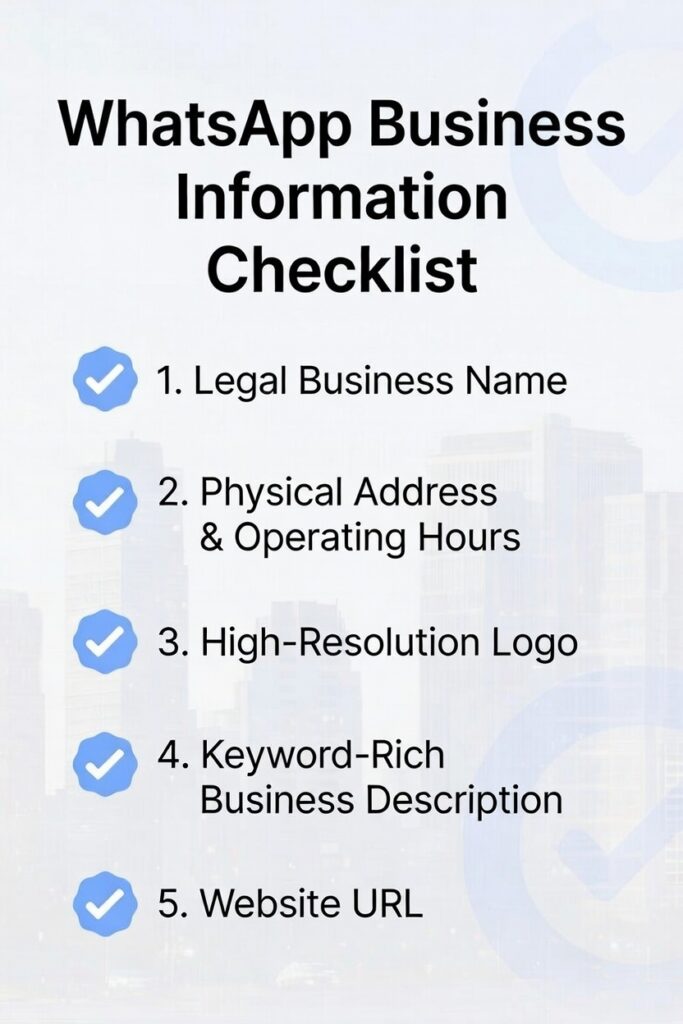
Have all 5 items ready before you start registration:
- Legal Business Name: Use the exact name as it appears on your invoices, tax certificates, and government registration documents. Inconsistencies can delay Meta Business verification.
- Physical Address & Operating Hours: Include your full street address, city, country, and postcode. Operating hours must reflect your real availability — incorrect hours frustrate customers and damage trust.
- High-Resolution Logo: Minimum recommended size: 640 x 640 pixels (1:1 square ratio). Use PNG format with a transparent background for the cleanest display across all device sizes.
- Keyword-Rich Business Description: Write a 139-character description that naturally includes your primary service keyword. Example: ‘Accra-based logistics company delivering parcels across West Africa in 24–72 hours.’
- Website URL: A working website is crucial for Meta Business verification trust signals. Ensure your site has an active SSL certificate (https://) — HTTP-only sites may be flagged.
🚨 Critical Update for 2026: The Meta Business Portfolio
🚨 Critical: WhatsApp is now deeply integrated into Meta’s ecosystem. This is not optional — it affects every business using WhatsApp commercially.
WhatsApp Business, Meta Ads, Instagram Shopping, and Facebook Pages all operate under one unified Meta Business Portfolio (formerly called Meta Business Manager). This integration means your phone number, ad accounts, and catalog are all linked to a single Meta entity.
Why this matters even for free app users:
- If you ever want to run Click-to-WhatsApp ads on Facebook or Instagram, you need a Meta Business Portfolio.
- The Portfolio protects your WhatsApp number as a business asset — not tied to a personal Facebook account.
- Future-proofs your setup: upgrading to the API requires an active Portfolio.
Action Item — How to Set Up Your Meta Business Portfolio (4 Steps):
- Go to business.facebook.com and click ‘Create Account’.
- Enter your Business Name, your name, and your business email address.
- Fill in business details: address, phone number, website, and business category.
- Verify your email address via the confirmation link Meta sends you.
✅ Complete all business info fields. Incomplete Portfolios get lower verification priority from Meta’s review team.
📱 The Phone Number Rule (Non-Negotiable)
Your phone number is the permanent foundation of your WhatsApp Business identity. Get this right from day one.
3 Hard Rules for Your Business Number:
- Use a real mobile number only: VoIP services (Google Voice, Skype numbers, Twilio virtual numbers) cannot receive the WhatsApp verification code. They will fail at Step 2 every time.
- It must receive SMS or voice calls: During setup, WhatsApp sends a 6-digit verification code via SMS. If SMS fails, you can request an automated voice call. Your number must support at least one of these.
- This number is permanently tied to your business account: Once registered, changing your WhatsApp Business number requires a formal migration process. Choose a number you plan to keep for at least 2–3 years.
⚠️ Warning 1: Landlines and VoIP numbers (Google Voice, Skype, MagicJack) are NOT supported for initial verification. Using them will result in a failed setup.
⚠️ Warning 2: Do NOT use your personal WhatsApp number if you want to keep personal and business chats separate. Get a dedicated business SIM.
Step-by-Step Registration Process – WhatsApp Business Download & Registration
Step 1: Download the Correct App
There are 2 WhatsApp apps in every app store. Downloading the wrong one is the most common beginner mistake — you won’t notice until features are missing.
| App Name | Purpose | Icon | Where to Download |
| WhatsApp Messenger | Personal use ONLY — no business features | Speech bubble (green) | App Store / Google Play |
| WhatsApp Business ✅ | Business use — catalog, quick replies, API-ready | Briefcase icon (green) | App Store / Google Play |
iOS Users
- Open the App Store on your iPhone or iPad.
- Search: ‘WhatsApp Business‘ (include the word Business).
- Download the app by Meta Platforms Inc. — verify the developer name.
Android Users
- Open Google Play Store on your Android device.
- Search: ‘WhatsApp Business’.
- Install the app published by WhatsApp LLC.
⚠️ Warning: Do NOT download ‘GB WhatsApp’, ‘WhatsApp Plus’, or any third-party modified versions. Meta bans these accounts permanently for violating Terms of Service.
Step 2: Verification Process
Verification links your phone number to your WhatsApp Business account. Follow these 4 steps exactly:
- Open WhatsApp Business → tap ‘Agree & Continue‘ to accept Meta’s Terms of Service.
- Enter your business phone number — include the country code (e.g., +44 for UK, +234 for Nigeria, +1 for USA).
- Receive the 6-digit verification code via SMS within 60 seconds. If SMS fails after 2 minutes, tap ‘Call Me‘ for an automated voice call.
- Restore backup (optional): If you previously used WhatsApp Messenger on this number and have a backup, you can restore your chat history. However, best practice is to start fresh with a dedicated business number to keep business and personal data completely separate.
⚠️ Warning: A phone number cannot run both WhatsApp Messenger (personal) and WhatsApp Business simultaneously. Activating WhatsApp Business on your personal number permanently deactivates your personal WhatsApp on that number.
✅ If you want to keep your personal WhatsApp active, use a second SIM card or eSIM for your business number.
Step 3: WhatsApp Business Profile Setup — The Trust Layer
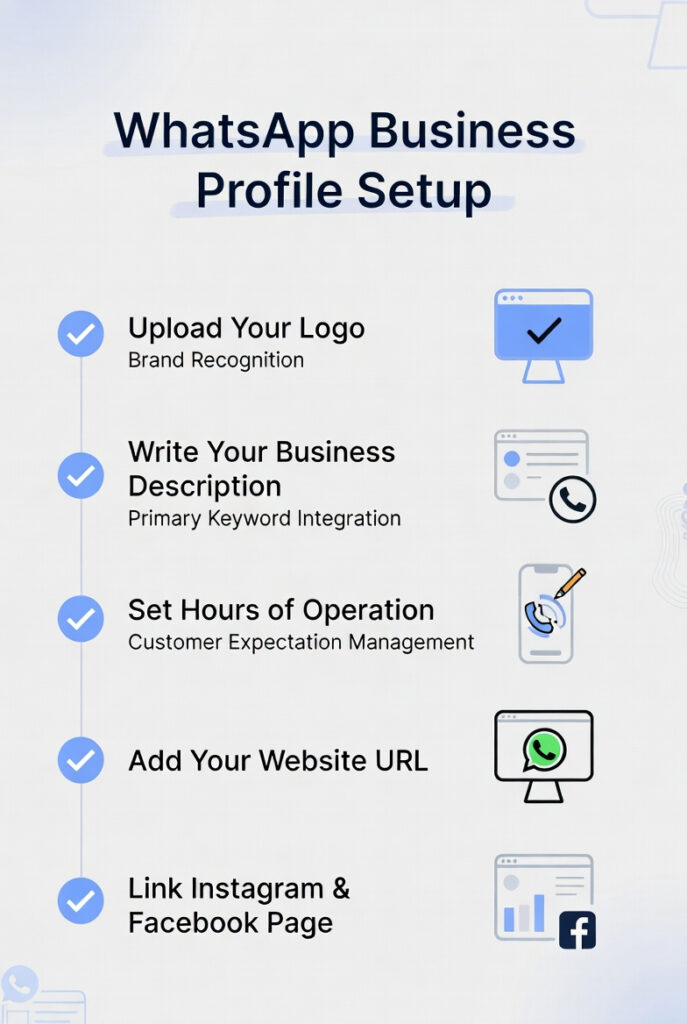
Your WhatsApp Business profile is your digital storefront. Research shows that a complete business profile increases customer message response rates by 3x compared to incomplete profiles.
Navigate to: Settings → Business Tools → Business Profile
- Upload Your Logo (Brand Recognition): Use a 640 x 640px minimum PNG file. Your logo appears as your profile picture in every customer chat. A professional logo builds instant credibility — blurry or pixelated images reduce trust signals significantly.
- Write Your Business Description (Primary Keyword Integration): You have 139 characters. Include your primary service keyword naturally. Avoid generic phrases like ‘We provide the best service.’ Instead: ‘Nairobi-based solar panel installer — residential & commercial systems from 1kW to 100kW. Free site assessment.’
- Set Hours of Operation (Customer Expectation Management): Enter your real business hours for each day of the week. WhatsApp displays your hours on your profile. Accurate hours reduce customer frustration from expecting replies outside working hours.
- Add Your Website URL: Required for Meta Business verification. Add your full domain (https://yoursite.com). This also allows customers to visit your website directly from the chat.
- Link Instagram & Facebook Page: Connect your existing Meta accounts to unify your brand presence across WhatsApp, Instagram, and Facebook. This enables Click-to-WhatsApp ad integration and cross-platform messaging in the future.
✅ Complete 100% of your profile fields. WhatsApp’s algorithm shows complete profiles more prominently in business search results within the app.
Advanced Setup — WhatsApp Business Catalog & Messaging Tools
🛍️ How to Create and Optimize a Product/Service Catalog
The WhatsApp catalog is one of the most underused features of the Business App. It transforms your chat into an interactive digital showroom — customers browse, select, and share products without ever leaving the conversation.
Why Catalogs Matter:
- Businesses with complete catalogs report 40% higher conversion rates than those without.
- Customers can share your product links directly with friends — creating organic word-of-mouth referrals.
- Catalog items can be linked directly in your Greeting Message, turning every new chat into a sales opportunity.
How to Access the Catalog:
Navigate to: Settings → Business Tools → Catalog → tap the ‘+’ button → Add New Item
Key Fields to Complete for Every Product or Service:
| Field | Best Practice | Example Entry |
| Product/Service Name | Include primary keyword. Keep under 60 characters. | Men’s Running Shoes – Nike Air Max 2026 |
| Price | Always include local currency symbol. Never leave blank. | ₦45,000 / $59.99 / £49.00 |
| Description | 150–300 characters. Include top 3 features + 1 benefit. | Lightweight EVA sole, breathable mesh upper, sizes 38–47. Ideal for road running & gym training. |
| Product Code / SKU | Match exactly to your inventory management system. | NKE-AM-2026-BLK |
| Website Link | Deep link to the exact product page, not homepage. | yourstore.com/products/nike-air-max-2026 |
Catalog Image Best Practices:
- Use 1000 x 1000px images (1:1 square ratio) for uniform catalog display.
- Shoot products on a white or neutral grey background — it increases perceived product value.
- Show the product from at least 3 angles: front, side, and detail shot.
- Use natural or studio lighting — avoid harsh shadows or yellow indoor lighting.
- Well-lit, high-contrast images increase catalog tap-through rates by 2x vs. poorly lit photos.
✅ Add ALL your products/services to the catalog on day one, even if some are ‘coming soon’. A catalog with 10+ items signals an active, established business to new customers.
🤖 Automating First Impressions — Messaging Tools
WhatsApp Business offers 3 native automation tools built directly into the free app. These 3 tools save time, reduce manual response costs, and improve customer satisfaction scores — without requiring any coding or third-party software.
| Tool | What It Does | When It Triggers | Best Use Case |
| Instant Reply (Greeting Message) | Sends an automatic first message to new contacts | First time a customer messages you OR after 14 days of no contact | Welcome message + business hours + catalog link |
| Quick Replies | Shortcut commands that paste pre-written responses instantly | When you type ‘/’ in the reply box and select a shortcut | Answering FAQs: pricing, delivery times, address, returns policy |
| Away Messages | Auto-reply sent when you’re not available | Outside business hours, weekends, or public holidays | Set response time expectations + emergency contact info |
Setting Up Your Instant Reply (Greeting Message) — Step-by-Step
Navigate to: Settings → Business Tools → Greeting Message
- Toggle ‘Send Greeting Message‘ to ON.
- Tap the pencil icon to edit the default message.
- Write a personalized greeting. Include: your business name, a warm welcome, your catalog link, and your operating hours.
- Under ‘Send To‘, choose who receives the greeting: All Contacts, Everyone Not in Address Book, Everyone Except [specific contacts], or Only Send To [specific contacts].
- Tap ‘Save.’
Example Greeting Message (copy and customize):
👋 Hi! Welcome to [Business Name]. We’re glad you reached out! Browse our full catalog here: [catalog link]. Our team responds Mon–Fri, 9AM–6PM WAT. We’ll get back to you shortly!
Setting Up Quick Replies — Step-by-Step
Quick Replies let you respond to common questions in under 3 seconds. A single ‘/’ keystroke brings up your full library of saved responses.
Navigate to: Settings → Business Tools → Quick Replies
- Tap the ‘+’ icon to create a new quick reply.
- In the ‘Message’ field, type the full response text you want to save.
- In the ‘Shortcut’ field, type a short keyword (e.g., /hours, /price, /delivery, /address).
- Optionally add a keyword tag to organize your replies.
- Tap Save. Repeat for every FAQ.
Recommended Quick Reply Library for New Businesses:
| Shortcut | Full Reply Content |
| /hours | Our business hours are Mon–Fri: 9AM–6PM, Sat: 10AM–3PM. We’re closed Sundays and public holidays. |
| /price | Please browse our full price list in our catalog: [link]. Prices vary by product and quantity. Contact us for bulk order quotes. |
| /delivery | We deliver within 2–5 business days. Same-day delivery is available in [City] for orders placed before 12PM. |
| /address | Visit us at: [Full Address]. We’re open Mon–Fri 9AM–6PM. [Google Maps Link] |
| /returns | We accept returns within 14 days of purchase. Items must be unused and in original packaging. Contact us to initiate a return. |
✅ Create 5–10 Quick Replies in your first week. Businesses with 5+ Quick Replies report up to 70% reduction in average response time.
Setting Up Away Messages — Step-by-Step
Away Messages ensure no customer feels ignored — even at 2AM on a Sunday. They set clear expectations and reduce customer frustration from unanswered messages.
Navigate to: Settings → Business Tools → Away Message
- Toggle ‘Send Away Message‘ to ON.
- Tap the pencil icon to write your away message. Include: acknowledgement of their message, expected response time, and an alternative contact if urgent.
- Under ‘Schedule‘, choose from 3 options:
- Always Send: Useful during extended closures (e.g., vacation, annual shutdown).
- Custom Schedule: Set specific away hours (e.g., 6PM–9AM daily). Best for regular after-hours coverage.
- Outside of Business Hours: Automatically sends during non-business hours you set in your profile.
- Under ‘Send To’, select your audience (same options as Greeting Message).
- Tap Save.
Example Away Message:
Thanks for reaching out to [Business Name]! 🙏 We’ve received your message and will respond within 2 business hours during our working hours (Mon–Fri, 9AM–6PM). For urgent matters, call us at [phone number]. Have a great day!
When Should You Upgrade to the WhatsApp Business API?
The free WhatsApp Business App is powerful for small operators. But it has hard architectural limits. Here are the 3 specific pain points that signal it’s time to upgrade to the API:
Identifying the Tipping Point — 3 Pain Points That Signal You Need the API
Pain Point 1: Team Collaboration
The free WhatsApp Business App allows only 1 active primary device at a time (plus up to 4 linked view-only devices). This means only 1 agent can actively send and receive messages. If you have 2 or more customer service agents, they are forced to share a single phone — creating message confusion, missed chats, and agent frustration.
API Solution: The WhatsApp Business API allows unlimited agents to work from a shared inbox simultaneously. Every agent gets their own login. Every conversation is tracked, assigned, and resolved with accountability.
Pain Point 2: CRM Integration
The free app stores all conversations inside the phone app only. There is no native way to sync chats with your CRM, no automatic contact tagging, no deal tracking, and no reporting on conversation outcomes. Growing businesses lose valuable customer data this way.
API Solution: The WhatsApp Business API integrates natively with CRM platforms including HubSpot, Salesforce, Zoho CRM, Pipedrive, and Freshdesk. Every WhatsApp conversation becomes a trackable customer interaction with full history, tags, and pipeline visibility.
Pain Point 3: Broadcasts & Template Messages
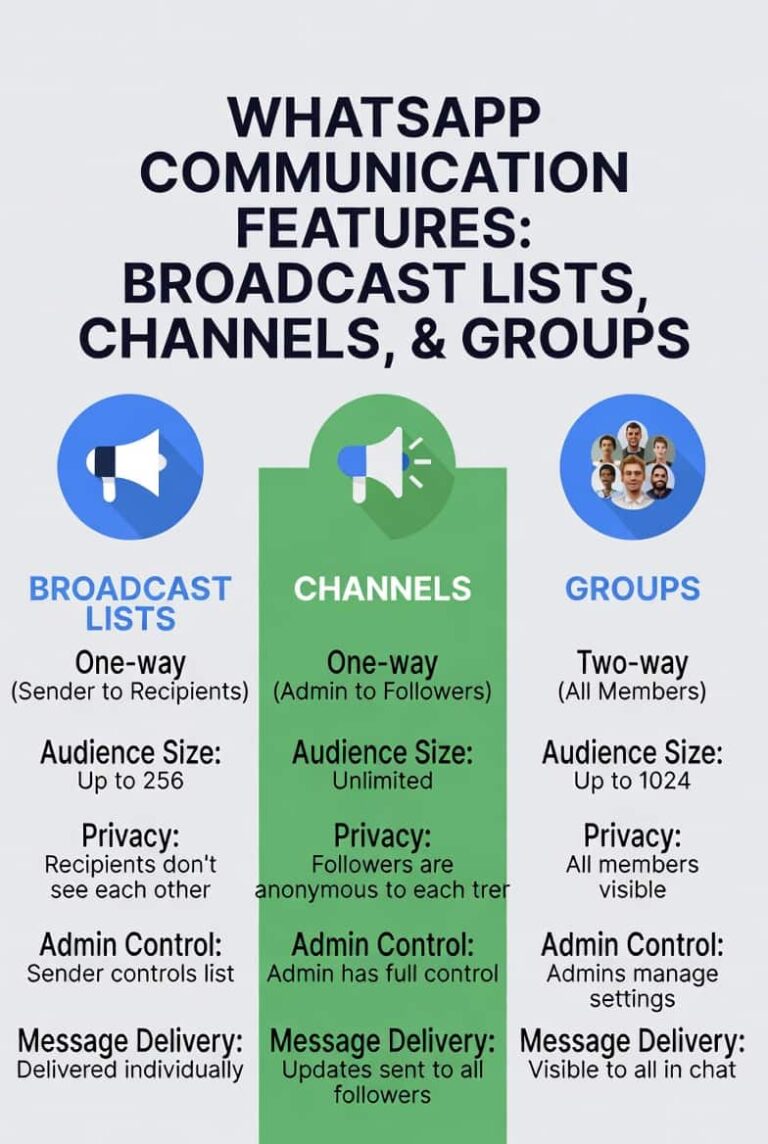
The free app’s broadcast feature is limited to 256 contacts per broadcast list, and it only delivers messages to contacts who have saved your number. It also cannot send structured ‘template messages’ — which means you cannot send order confirmations, shipping updates, appointment reminders, or payment notifications at scale.
API Solution: The WhatsApp Business API allows sending approved ‘template messages‘ (also called HSMs — Highly Structured Messages) to unlimited opted-in contacts. These include order confirmations, delivery tracking links, OTP codes, appointment reminders, and promotional campaigns — all within Meta’s approved messaging guidelines.
| Feature | Free Business App | WhatsApp Business API |
| Active Agents / Devices | 1 primary device | Unlimited agents |
| CRM Integration | ❌ Not available | ✅ HubSpot, Salesforce, Zoho, Pipedrive |
| Broadcast Limit | 256 contacts max | Unlimited (opted-in contacts) |
| Template Messages | ❌ Not supported | ✅ Order alerts, shipping, OTPs, promos |
| Chatbot / Automation | Basic auto-replies only | Full AI chatbot flows |
| Analytics & Reporting | ❌ None | ✅ Delivery rates, read rates, agent stats |
| Green Tick Verification | ❌ Not available | ✅ Eligible after API activation |
| Monthly Cost | Free | Per-conversation (Meta pricing + BSP fee) |
What Is a Business Solution Provider (BSP)?
Meta does not sell WhatsApp API access directly to most small and medium businesses. You access the API through an authorized Business Solution Provider — a certified Meta partner that manages API infrastructure on your behalf.
What a BSP Provides — 3 Core Services:
- Multi-Agent Dashboard: A web-based inbox where multiple customer service agents log in, handle assigned conversations, set statuses, and escalate tickets — all from one screen. No phone sharing required.
- Message Template Management: BSPs provide a template submission portal where you draft, submit, and track approval for WhatsApp template messages (Meta approves templates within 0–24 hours typically).
- Analytics & Reporting: Real-time dashboards showing message delivery rates, read rates, response times, agent performance scores, and conversation volume trends by hour, day, and month.
Popular BSPs and What They Specialize In:
| BSP | Best For | Starting Price | Key Integration |
| WATI | SMEs, e-commerce, D2C brands | ~$49/month | Shopify, WooCommerce, Zapier |
| 360dialog | Developers, tech teams needing raw API | ~$5/month + Meta fees | Custom API, HubSpot, Salesforce |
| Twilio | Enterprise, high-volume messaging | Pay-per-message | Salesforce, custom CRMs, AWS |
| Vonage (Ericsson) | Telecom-grade enterprises | Custom pricing | Enterprise CRMs, contact centers |
| Respond.io | Sales teams, lead nurturing | ~$79/month | HubSpot, Pipedrive, Zapier |
| Interakt | Indian SMEs, D2C brands | ~$15/month | Shopify, WooCommerce, Razorpay |
How to Choose a BSP — 4 Key Criteria:
- Pricing model: Compare per-message vs. monthly subscription. Calculate your estimated monthly conversation volume. If you send 500+ conversations/month, a flat subscription usually offers better value.
- CRM integrations: Does the BSP connect natively to your current CRM without custom development? Native integrations save weeks of developer time.
- Onboarding support: Do they offer guided setup, number migration, and dedicated onboarding? API setup involves Meta Business verification, phone number registration, and template approval — an experienced BSP makes this 3x faster.
- Uptime SLA: For customer-facing messaging infrastructure, require a minimum 99.9% uptime SLA in writing. Downtime during peak sales periods can cost thousands in lost orders.
Frequently Asked Questions (FAQ) – People Also Ask/
Q1: Can I migrate my personal WhatsApp to a Business account?
You cannot run both a personal WhatsApp and a WhatsApp Business account on the same number simultaneously. However, you CAN transfer your existing personal number to WhatsApp Business. When you do this, your personal WhatsApp account on that number is permanently deactivated. If you back up your chats before switching, your chat history transfers to the Business app. Best practice: use a dedicated second number for your business to keep personal and professional communication fully separate.
Q2: What happens to my old personal chats after verification?
If you convert your personal number to a WhatsApp Business account and restore a backup during setup, your entire personal chat history — messages, photos, videos, and documents — transfers to the Business app. However, this is not recommended for professional use. Starting fresh with a dedicated business number ensures your personal conversations remain private and your business chats remain professional and searchable.
Q3: Is the WhatsApp Business App free?
Yes — the WhatsApp Business App is completely free to download on iOS and Android. There are no monthly subscription fees and no per-message charges within the app. Standard mobile data charges from your carrier apply for internet usage. Note: The WhatsApp Business API is not free — it operates on Meta’s conversation-based pricing model (charged per 24-hour conversation window) plus any additional fees from your chosen BSP.
Q4: Can I use WhatsApp Business on iPad or Desktop without my phone connected?
The free WhatsApp Business App requires your primary phone to remain connected to the internet for WhatsApp Web and desktop access to work. If your phone goes offline, your desktop session disconnects too. The WhatsApp Business API, however, operates entirely in the cloud — no physical phone needs to stay online. This makes the API the clear choice for businesses with desktop-based support teams who cannot rely on a phone staying online 24/7.
Q5: How long does WhatsApp Business verification take?
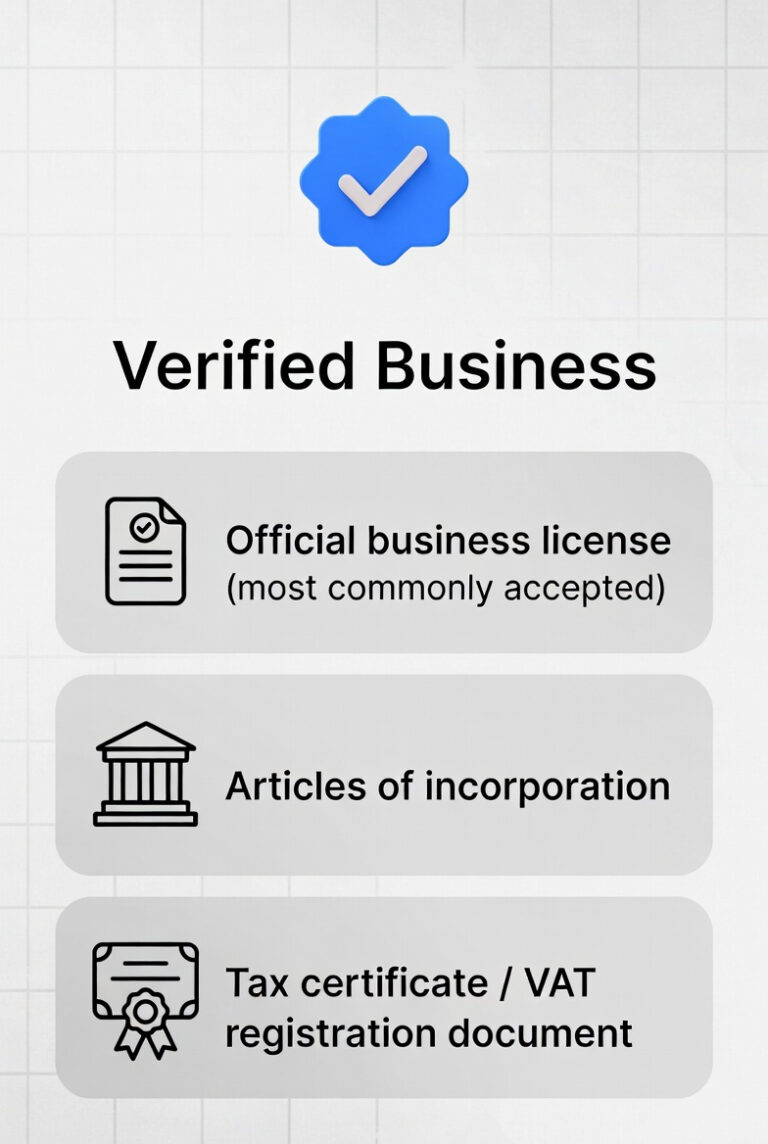
Standard account setup is instant — you receive the 6-digit SMS verification code within 60 seconds. Full profile setup takes approximately 15–30 minutes. However, if you want the green ‘Verified’ checkmark (Official Business Account), Meta’s review process takes 3–7 business days. Green tick eligibility requires: an active Meta Business Portfolio, a Meta Ads account, and a notable brand presence (typically reserved for mid-to-large enterprises). Most SMEs operate successfully without the green tick.
Q6: Can I use the same WhatsApp Business number on 2 phones?
No. The free WhatsApp Business App allows only 1 primary device. You can link up to 4 additional devices (tablets, laptops) as companion devices, but these require the primary phone to be online and active. To support 2 or more phones independently — with different agents handling the same number from different devices — you must upgrade to the WhatsApp Business API through a BSP.
Key Takeaways — Summary
| Setup Phase | Key Action | Estimated Time | Priority |
| Preparation | Create Meta Business Portfolio + gather 5 business assets | ~30 minutes | 🔴 Critical |
| Download & Registration | Install WhatsApp Business app, verify number | ~10 minutes | 🔴 Critical |
| Profile Setup | Upload logo, write description, set hours, link website | ~15 minutes | 🔴 Critical |
| Catalog Setup | Add all products/services with images, prices, descriptions | ~45–90 minutes | 🟠 High |
| Greeting Message | Set instant reply with catalog link + hours | ~10 minutes | 🟠 High |
| Quick Replies | Create 5–10 shortcuts for common FAQs | ~20 minutes | 🟡 Medium |
| Away Messages | Set after-hours auto-reply with response time | ~10 minutes | 🟡 Medium |
| API Upgrade (if needed) | Research BSPs, apply for API access via Meta | 3–7 business days | 🔵 When ready |
Conclusion
Setting up WhatsApp Business correctly in 2026 is a structured 3-phase process: prepare your assets before installation, complete the registration and profile setup, then optimize your catalog and automation tools.
Start with the free WhatsApp Business App. Master the 3 automation tools — Greeting Messages, Quick Replies, and Away Messages. Build out your full product catalog. These foundational steps alone can reduce your average response time by 70% and increase customer satisfaction significantly.
When your business grows beyond 1 agent, when you need CRM integration, or when you require broadcast template messages at scale — that’s the signal to research a Business Solution Provider and migrate to the WhatsApp Business API.
The businesses winning on WhatsApp in 2026 are not the ones with the most contacts. They are the ones with the fastest, most professional, and most consistent customer experience. This guide gives you the foundation to be one of them.
official website: About verified business accounts | WhatsApp Help Center, WhatsApp for Business | Do more with conversations
Last updated: 01st of March 2026